How to create and apply a cable correction[edit]
This RadiMation® application note explains how to create a cable correction and how to use it in RadiMation®.
Cable corrections can be applied for several reasons, for example:
- To compensate cable losses in emission measurements
- To compensate attenuators in a conducted immunity calibration setup
- To compensate the cable loss from a coupler to a power meter in an immunity test
By specifying the actual correction for the cable loss, RadiMation® will be showing the correct measurement values.
The procedure to determine and select a cable correction, consist of 3 steps:
- Create a calibration file.
- Create a Cable device driver and apply the correction file.
- Add the cable to the test equipment.
Create a calibration file[edit]
There are two methods to create a correction file:
Measure attenuation or gain[edit]
It is possible to use the attenuation gain measurement to automatically create a correction and measure the cable or attenuator with a signal generator and a power meter or spectrum analyser.
Attenuation / Gain System Calibration[edit]
Before RadiMation® can start to determine the attenuation or gain of a system, the system need to be calibrated.
Because this type of test considered to be a calibration all eut windows must be closed.
-
 Calibration
- System Calibration
- Attenuation / Gain
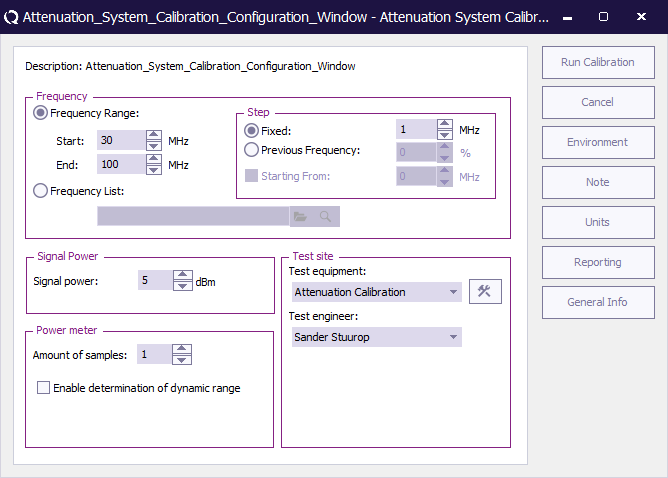
 Frequency Range Frequency Range
|
Sets the frequency specification to a frequency range.
|
| Start
|
Sets start frequency.
|
| End
|
Sets end frequency.
|
| Step Fixed
|
Sets a fixed step size from start to end frequency.
|
| Step Previous Frequency
|
Sets a logarithmic step size from start to stop frequency
|
| Starting From
|
Sets the start frequency for a logarithmic step from which the actual measurement frequencies will be calculated. The starting from frequency should be lower than the actual start frequency. The test will start at the first calculated frequency that is equal to or higher than the specified start frequency.
|
| Frequency list
|
With frequency list the operator can select a frequency list file by browsing to the file location. The frequencies inside the frequency list file will be measured.
|
| Signal power
|
The setting of the signal power level during the test.
|
| Amount of samples
|
The amount of samples level during the test.
|
| Test equipment
|
In the test site window the test engineer can select which equipment list will be used during this test.
|
| Test engineer
|
In the test engineer window, the test engineer can select its own name. The test engineer name will be stored by the test results.
|
| Equipment icon
|
By clicking on the equipment icon, the equipment list can be viewed and edited.
|
| Run Calibration
|
Start the configured calibration.
|
| Cancel
|
Cancel the configured calibration.
|
| Environment
|
Display the environment window.
|
| Note
|
Display the note window.
|
Running the test[edit]
After the test initialization has been performed and passed the user will be prompt.
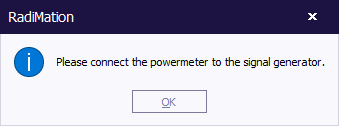
Connect the power sensor to the power reference and press ok. The power sensor will now be calibrated using the power reference source to make sure the power sensor is as accurate as possible.

|
Note:
|
Not all power sensors have a power reference source, in this case leave the power sensor connected to the calibration set up.
|
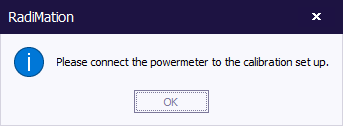
Connect the power sensor to the calibration set up and press ok.
After the calibration has been completed the user will be prompt where the calibration file needs to be saved.
Test set up[edit]
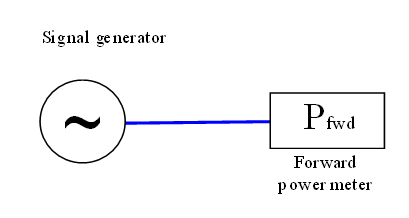
| # |
Device name |
Tab in RadiMation® configuration window
|
|
Signal Generator |
devices 1
|
|
Forward Power meter |
devices 1
|
Attenuation / Gain Test[edit]
Because the determination of gain or attenuation is considered to be a test on an actual EUT, RadiMation® needs to have an EUT window open before this test can be performed.
- Calibration
- EUT Calibration
- Attenuation / Gain
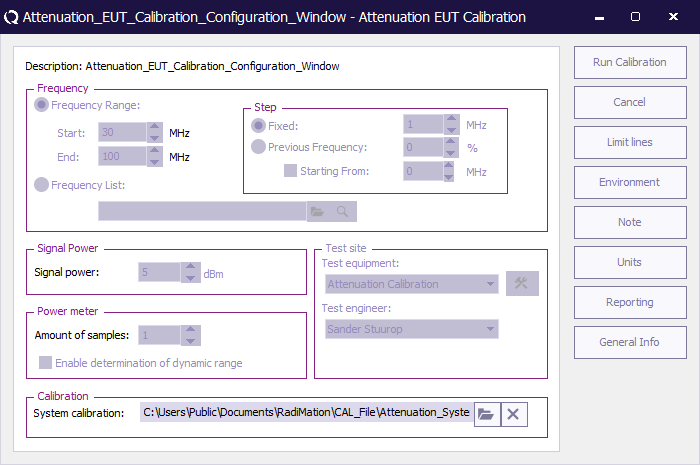
| Description
|
|
| Frequency Range
|
Sets the frequency specification to a frequency range.
|
| Start
|
Sets start frequency.
|
| End
|
Sets end frequency.
|
| Step Fixed
|
Sets a fixed step size from start to end frequency.
|
| Step Previous Frequency
|
Sets a logarithmic step size from start to stop frequency
|
| Starting From
|
Sets the start frequency for a logarithmic step from which the actual measurement frequencies will be calculated. The starting from frequency should be lower than the actual start frequency. The test will start at the first calculated frequency that is equal to or higher than the specified start frequency.
|
| Frequency list
|
With frequency list the operator can select a frequency list file by browsing to the file location. The frequencies inside the frequency list file will be measured.
|
| Signal power
|
The setting of the signal power level during the test.
|
| amount of samples
|
The amount of samples level during the test
|
| system Calibration
|
|
| Test equipment
|
In the test site window the test engineer can select which equipment list will be used during this test.
|
| Test engineer
|
In the test engineer window, the test engineer can select its own name. The test engineer name will be stored by the test results
|
| Run Calibration
|
Start the configured calibration.
|
| Cancel
|
Cancel the configured calibration
|
| Limit lines
|
|
| Environment
|
Display the environment window.
|
| Note
|
Display the note window.
|
| Reporting
|
|
| General Info
|
|
The only selectable option is the calibration file, when another calibration file is selected the settings of this file will be displayed.
Connect the test set up and press Run Calibration.
Once the actual test has been performed the test result file can be opened in the EUT window.
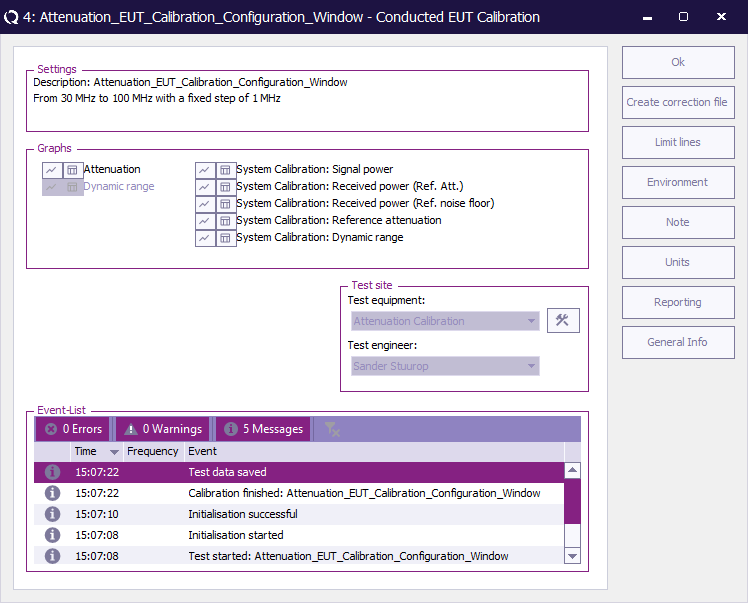
| Settings
|
|
| Attenuation
|
|
| Dynamic range
|
|
| Test equipment
|
|
| Test engineer
|
|
| Event-list
|
|
| Ok
|
Close the current window.
|
| Create correction file
|
Create a correction file based on the test information.
|
| Limit lines
|
|
| Environment
|
Display the environment window.
|
| Note
|
Display the note window.
|
| Reporting
|
|
| General Info
|
|
Create a correction manually[edit]
To create a correction file manually, first create a new correction file, using the menu:
- File
- New
- Correction
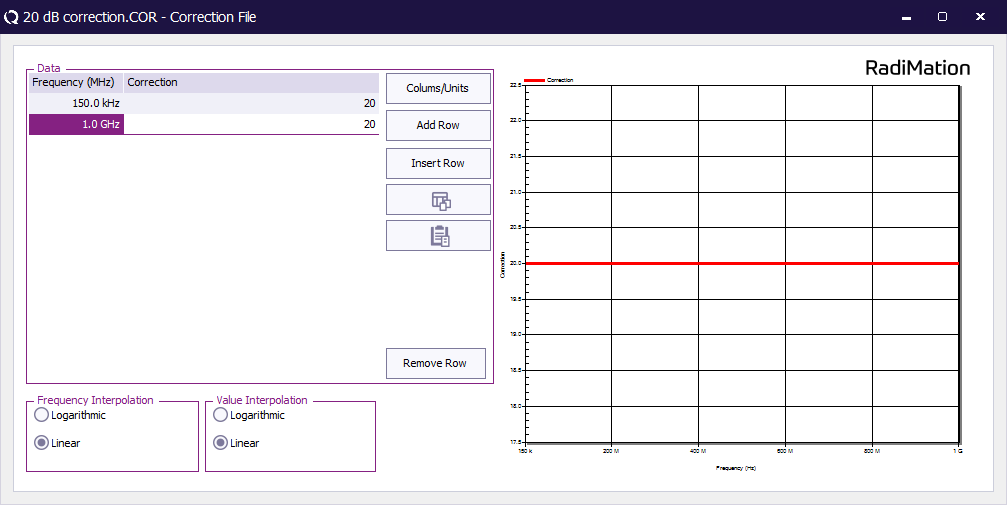
The Insert row button can be used to add additional rows. The cells in the frequency and correction columns can be used to specify the correct frequencies and the corresponding attenuation values.
The correction file can be saved to disk, by selecting from the menu:
- File
- Save correction as...
It is also possible to paste data from for example Microsoft Excel with the Paste button  .
Make sure the data on the clipboard is specified in present in MHz and attenuation values expressed in dB.
This feature is particularly used when correction values are supplied in a digital calibration certificate or is measured with other software.
.
Make sure the data on the clipboard is specified in present in MHz and attenuation values expressed in dB.
This feature is particularly used when correction values are supplied in a digital calibration certificate or is measured with other software.
Create a cable device driver[edit]
A new cable device driver can be created by selecting from the menu:
- Devices
- Devices
- Cables
- Add...
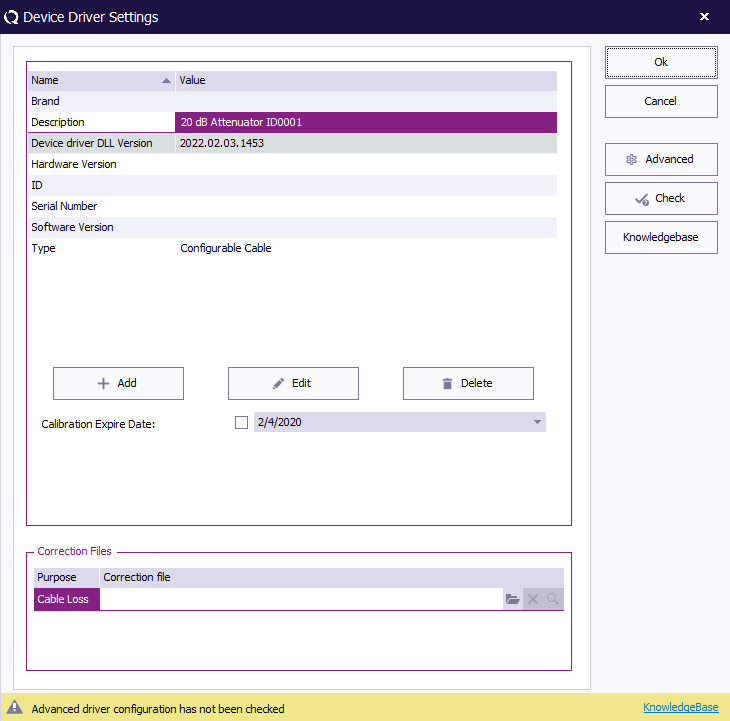
- Choose Configurable cable and click New.
- Enter an appropiate description for the cable or attenuator.
- The Device driver settings window, is shown. The fields in this window can be specified to provide any additional information regarding the cable.
- In the Correction files section, the previously saved correction file can be selected at Cable Loss.
- Click OK to close the window.
Add the cable to the test equipment[edit]
The final step is to update the test equipment to use the corrected cable.
This can be configured in the test equipment, which can be done by selecting from the menu:
- Test-sites
- Configure
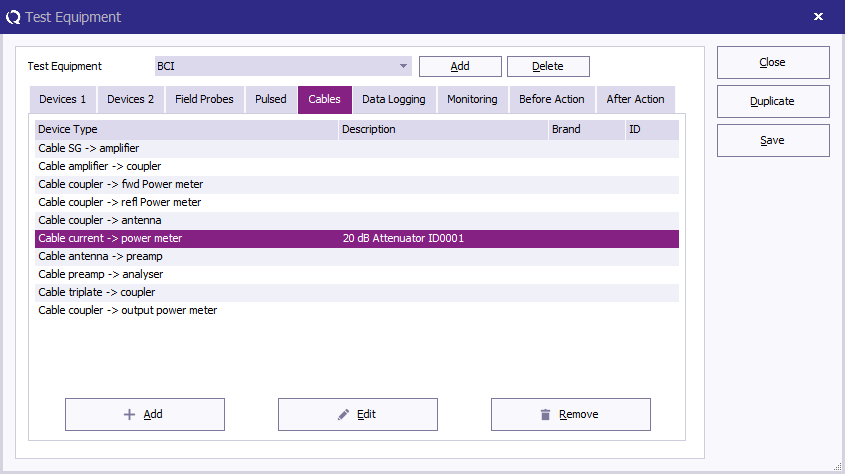
Selecting the cable can be done by:
- Select the applicable test equipment at the Test equipment dropdown box. (Or create a new test equipment using the Add button)
- Select the Cables tab.
- Click the Add button, select the applicable cable path in which the cable is used, and select the previously created cable device driver.
- Save the changes and Close the dialog.
If multiple cables or attenuator are used in a specific cable path (for example in the Cable current -> power meter path), then multiple cable device drivers can be added to that same cable path. RadiMation® will internally add all the separated cable losses into a single overall cable loss before it is used in the actual test.
Conclusion[edit]
Using the steps in this application note it is possible to measure a cable loss, and configure it in RadiMation®. After these steps RadiMation® will be able to perform and present more accurate absolute measurement values.


 .
Make sure the data on the clipboard is specified in present in MHz and attenuation values expressed in dB.
This feature is particularly used when correction values are supplied in a digital calibration certificate or is measured with other software.
.
Make sure the data on the clipboard is specified in present in MHz and attenuation values expressed in dB.
This feature is particularly used when correction values are supplied in a digital calibration certificate or is measured with other software.

